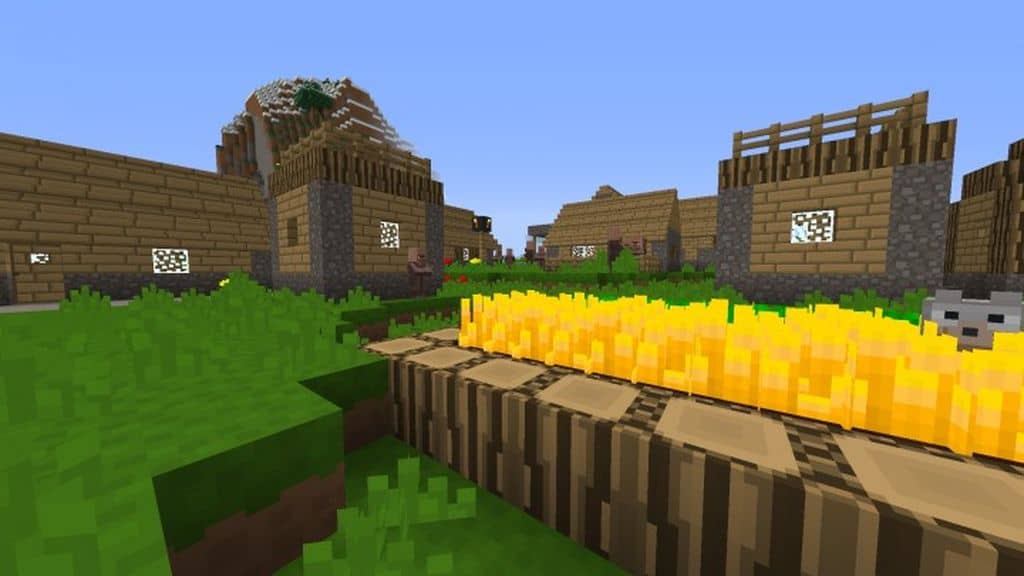
Not everyone wants a resource pack that increases texture resolution four to eight times the default and makes the game look completely different. Sometimes less is more, and I found that out firsthand when I tested the Shockingly Simple resource pack. It uses the exact same 16x resolution which is the default in vanilla Minecraft, but it changes textures for the better. It managed to get tens of thousands of downloads, and even though it has not received any updates in several years, it is still a remarkably popular resource pack. What makes the Shockingly Simple texture pack so successful is its fantastic ability to improve the visuals in Minecraft without increasing the texture resolution. By using the same 16x resolution, the resource pack does not negatively affect framerates even for players with older computers. This also makes it a brilliant PVP-friendly resource pack since, for PVP, a smooth-running game is completely mandatory.
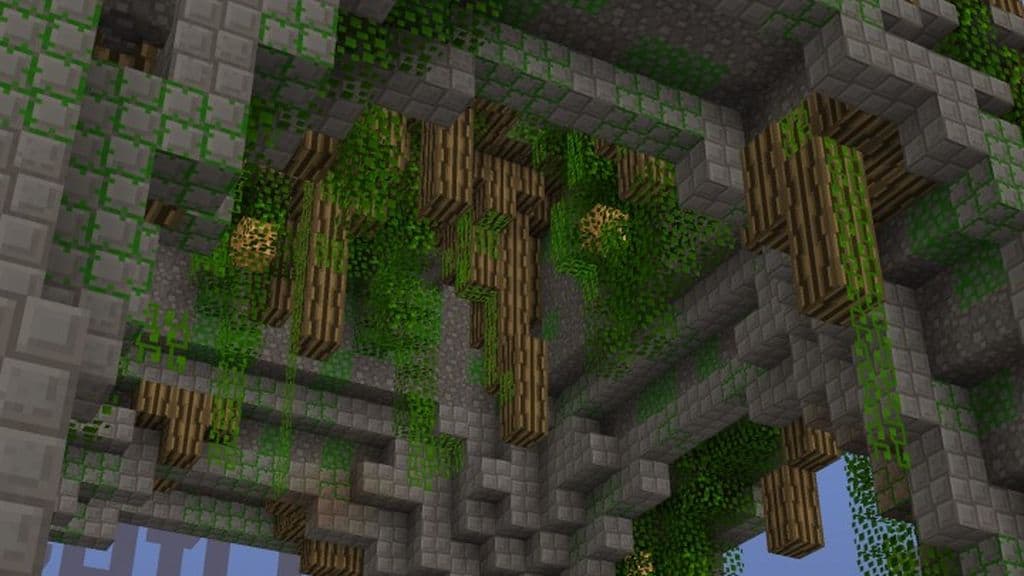
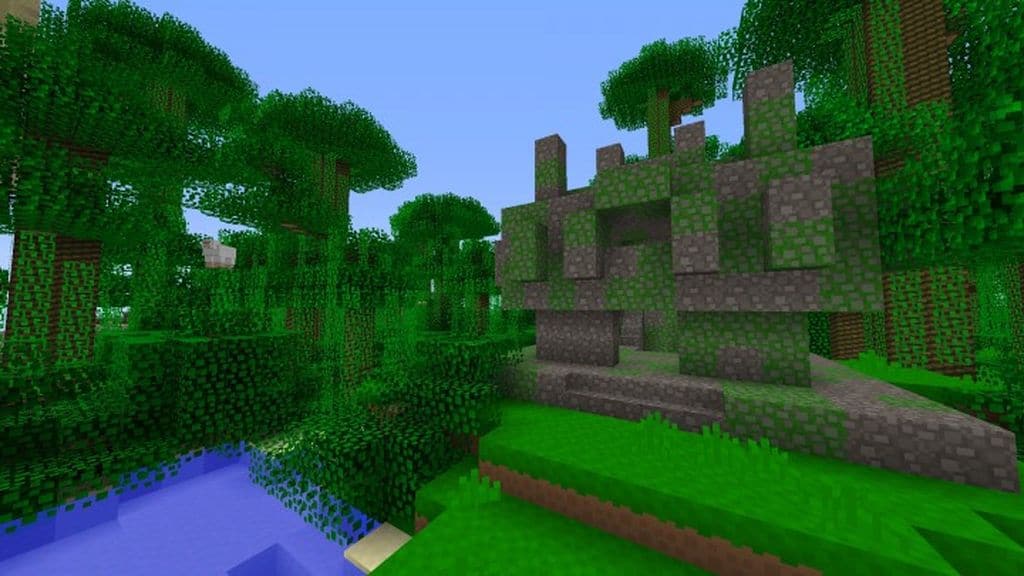
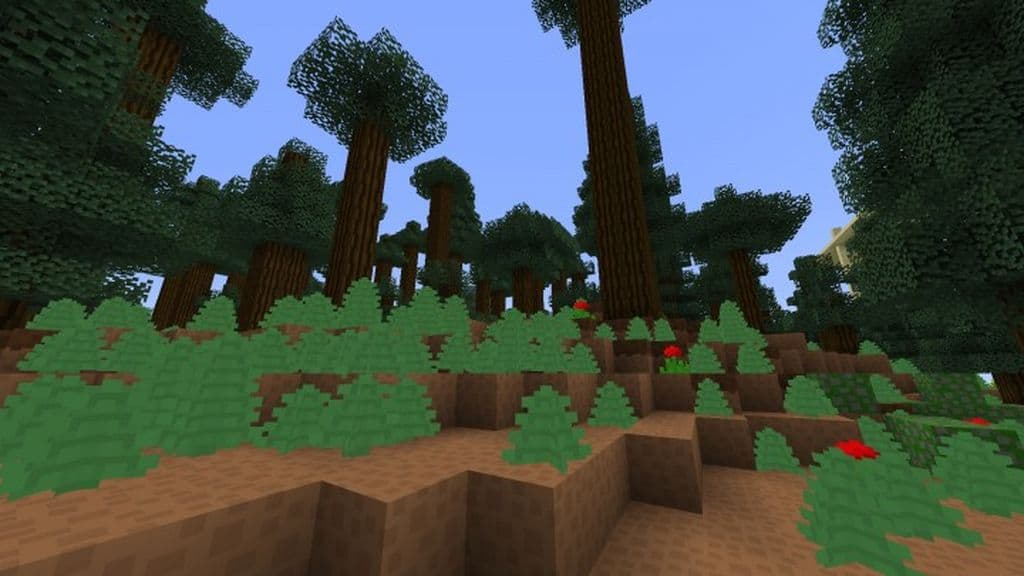
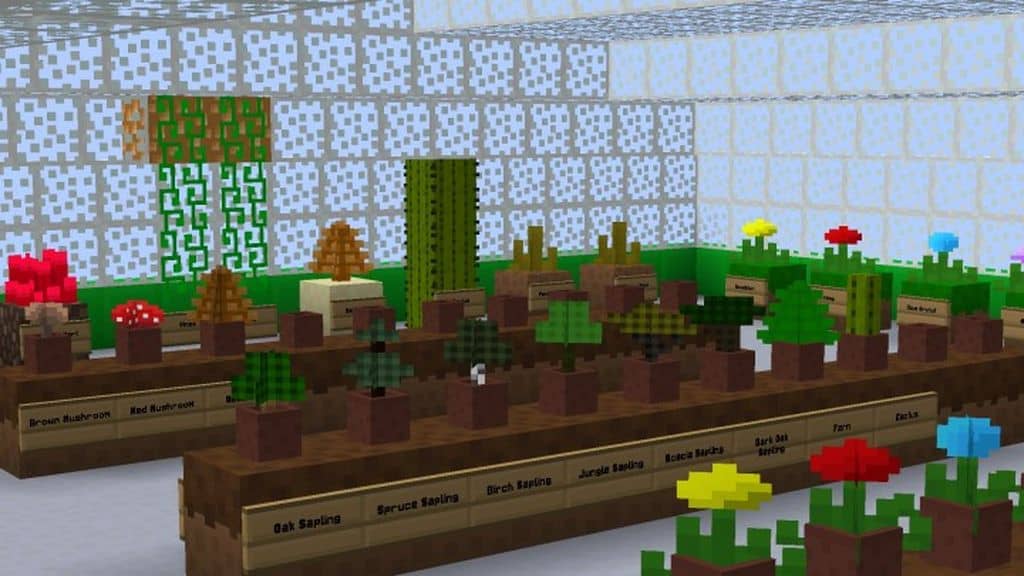
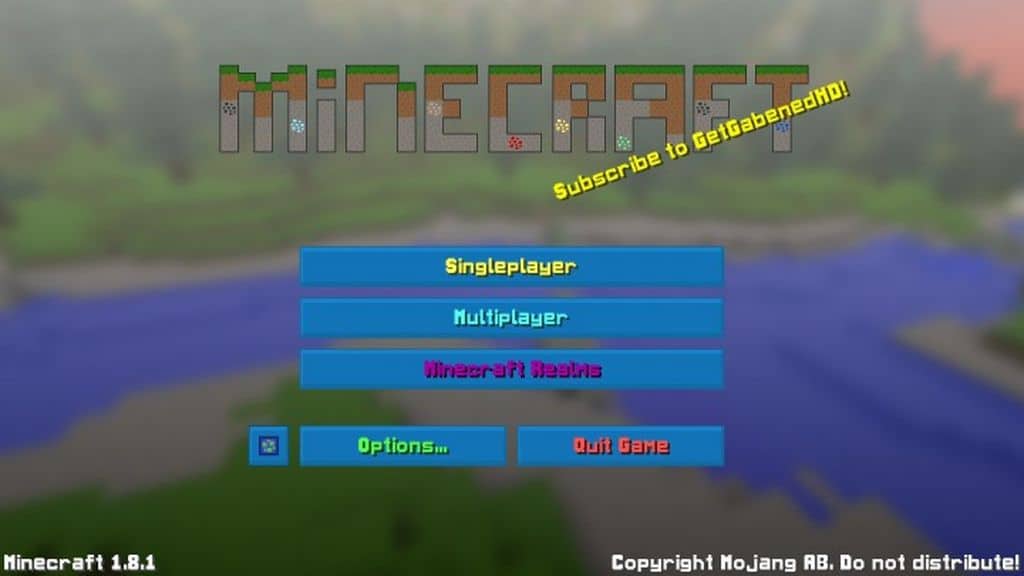
In terms of visual improvements, I really noticed how the resource pack touches upon many aspects of the game. It changes the textures for grass, plants, and trees, introduces smaller leaves, and brings in new blocks for wood, rock, various types of ore, and many more. The developer planned to add new paintings and other objects to the game. So far, the resource pack includes other great improvements such as custom fonts, new sounds, new particle effects, and custom GUI colors. The colors of some of the textures have been wonderfully tweaked to make them more vibrant. Noise has also been reduced, and the water texture has been changed. There are also new swords and new tools that feel great to use. I found that the Shockingly Simple texture pack can be installed without Optifine, but its author still recommends using it. It can also work with different types of shaders that can further improve the visuals with new lighting effects and less noise for textures and shadows.
Shockingly Simple should be compatible with all of these Minecraft versions: 1.8.9 – 1.8.8 – 1.8.1 – 1.8.6 – 1.8 – 1.7.10 – 1.7.9 – 1.7.4 – 1.7
Screenshots
How to Install Texture Pack (Simple 10 Steps)
- Download OptiFine: Most of the texture packs and shaders need OptiFine. That’s why, first download and install OptiFine for the version of Minecraft you want to play.
- Download the Texture Pack: Get the texture pack you want from the download section. Choose the version that works with your Minecraft and your PC’s performance.
- Open Minecraft Launcher: Start Minecraft using the official game launcher — or even TLauncher, if you use that.
- Go to Options: From the main menu, click on the “Options” button.
- Open Resource Packs: Inside Options, click on “Resource Packs…”.
- Open the Resource Pack Folder: Click on “Open Resource Pack Folder” — this will open a folder named “resourcepacks”.
- Move the Pack File: Copy or move the .zip file you downloaded into that “resourcepacks” folder. (Don’t unzip the file — Minecraft uses it as-is!)
- Go Back and Refresh: Close the folder and click “Done”, then go back into “Resource Packs…” again.
- Activate the Pack: You’ll see the pack on the left side. Hover over it and click the arrow to move it to the right (active side).
Tip: If you get a message that the pack is for a different version, just click “Yes” — it usually works fine. - Click Done and Enjoy: Click “Done” again. Now your pack is ready to use in-game. It’s that easy!
Credits
This resource pack was created by GetGabenedHD. We do not claim ownership of this content, nor do we host modified versions of the files. All rights remain with the original creator. We strongly encourage you to support GetGabenedHD by downloading the pack through the official links provided below.
Download Instructions
Curseforge: download starts automatically after a few seconds;
Mediafire: click the big blue button with the text “DOWNLOAD”;
Google Drive: in the top right corner you will see a small download icon (down arrow), click it and the download should start;


