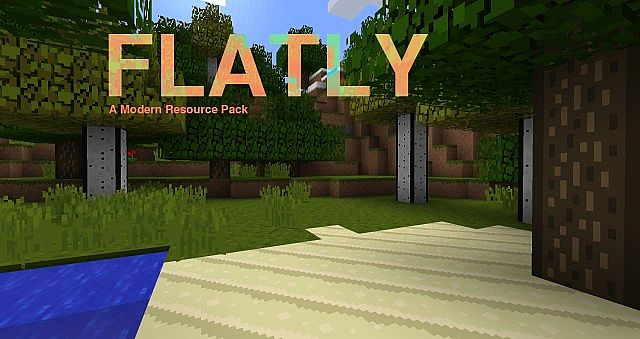
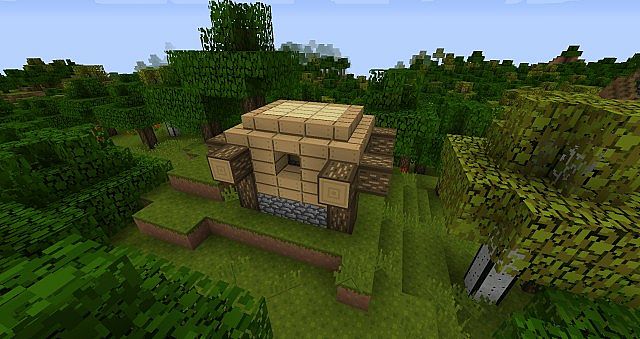
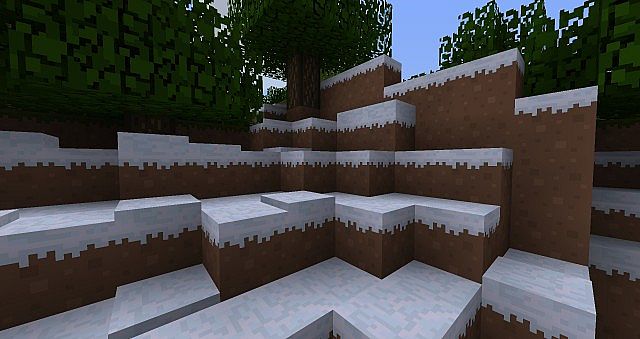
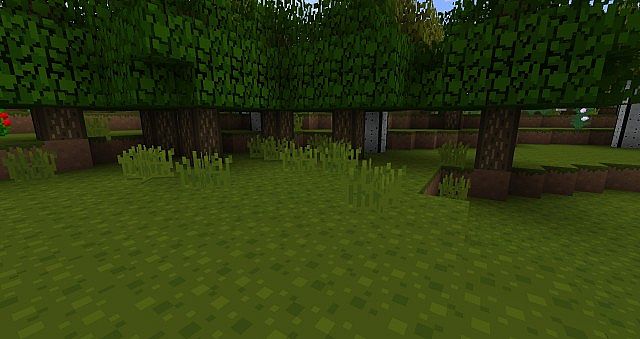
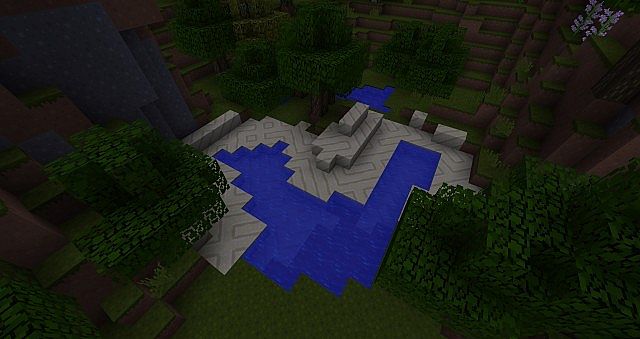
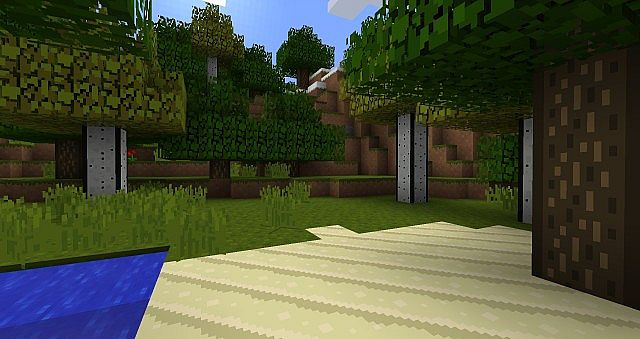
Flatly is a clean, minimalist resource pack that smooths out the default look for a modern feel without changing the game entirely. It keeps the world familiar while cutting back on small specks and heavy patterns that make vanilla textures feel noisy. The pack uses calmer colors, cleaner surfaces, and simpler patterns so blocks look crisp and builds appear more organized. If you like Minecraft’s original style but want it tidier, Flatly is a great fit. Labelled as Flatly x16, it uses the classic 16×16 resolution to stay lightweight and run well on modest hardware without loading large high-resolution textures. It keeps the game running smoothly while you mine, explore, or build fast.
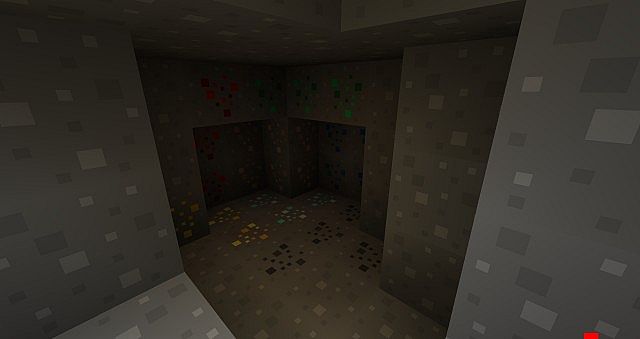
This pack works best when you want small improvements that add up rather than a full redesign. It retains the core look of common materials so you can recognize them instantly; wood looks like wood, stone looks like stone, and ores still stand out. The difference is in the color and pattern handling, using more even color areas and controlled contrast for a less cluttered look. The overall color scheme stays close to vanilla, while select blocks gain stronger tones and cleaner patterns to make your builds stand out subtly. For everyday play that keeps Minecraft familiar and runs well on low-end systems, Flatly is a solid option.
Flatly 16x should be compatible with all of these Minecraft versions: 1.8.9 – 1.8.8 – 1.8.1 – 1.8.6 – 1.8 – 1.7.10 – 1.7.9 – 1.7.4 – 1.7
Screenshots
How to Install Texture Pack (Simple 10 Steps)
- Download OptiFine: Most of the texture packs and shaders need OptiFine. That’s why, first download and install OptiFine for the version of Minecraft you want to play.
- Download the Texture Pack: Get the texture pack you want from the download section. Choose the version that works with your Minecraft and your PC’s performance.
- Open Minecraft Launcher: Start Minecraft using the official game launcher — or even TLauncher, if you use that.
- Go to Options: From the main menu, click on the “Options” button.
- Open Resource Packs: Inside Options, click on “Resource Packs…”.
- Open the Resource Pack Folder: Click on “Open Resource Pack Folder” — this will open a folder named “resourcepacks”.
- Move the Pack File: Copy or move the .zip file you downloaded into that “resourcepacks” folder. (Don’t unzip the file — Minecraft uses it as-is!)
- Go Back and Refresh: Close the folder and click “Done”, then go back into “Resource Packs…” again.
- Activate the Pack: You’ll see the pack on the left side. Hover over it and click the arrow to move it to the right (active side).
Tip: If you get a message that the pack is for a different version, just click “Yes” — it usually works fine. - Click Done and Enjoy: Click “Done” again. Now your pack is ready to use in-game. It’s that easy!
Credits
This resource pack was created by MCisland. We do not own or modify this file, and all rights belong to the original creator. We recommend supporting MCisland by downloading the pack through their official links.
Download Instructions
Curseforge: download starts automatically after a few seconds;
Mediafire: click the big blue button with the text “DOWNLOAD”;
Google Drive: in the top right corner you will see a small download icon (down arrow), click it and the download should start;


