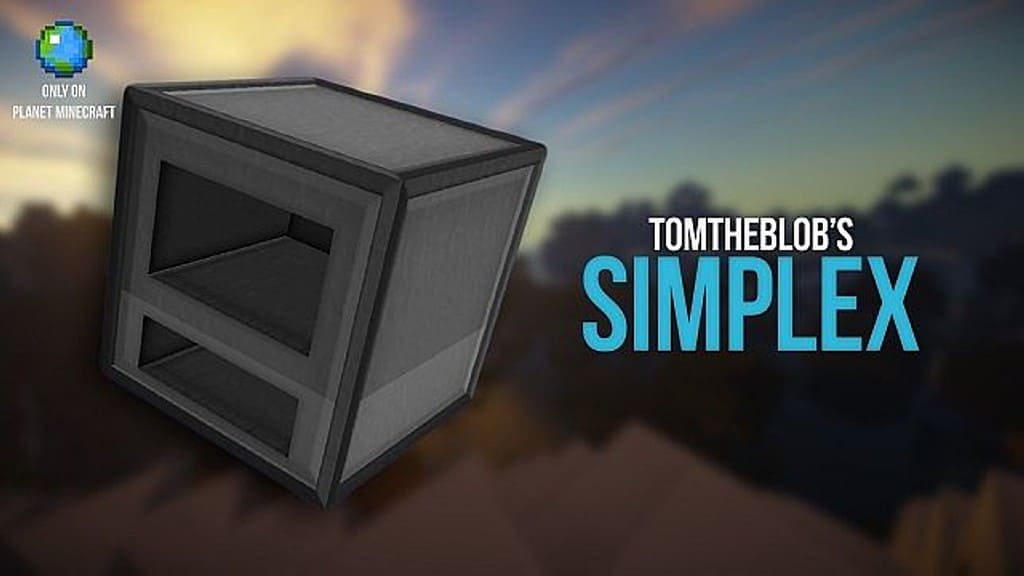
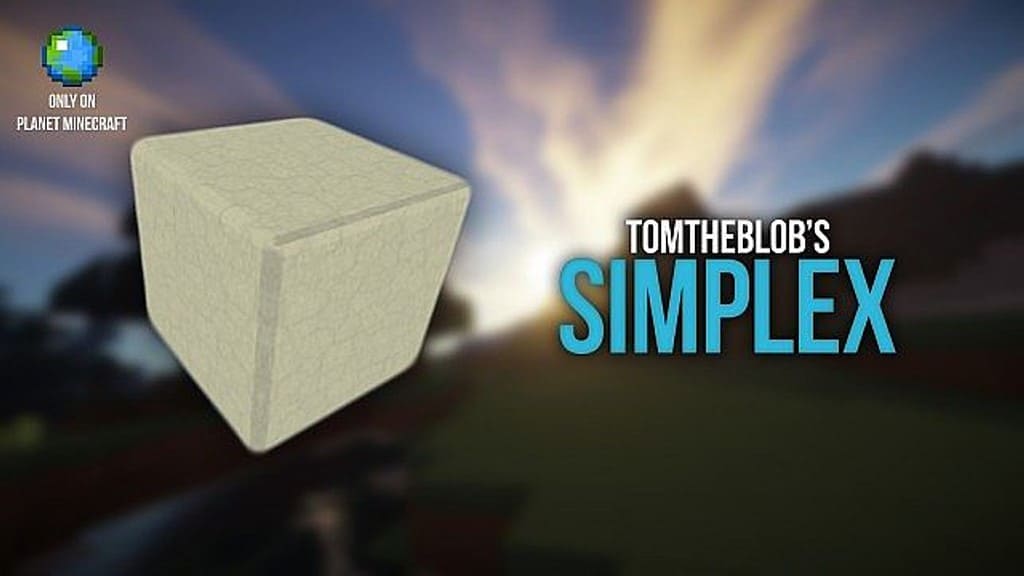
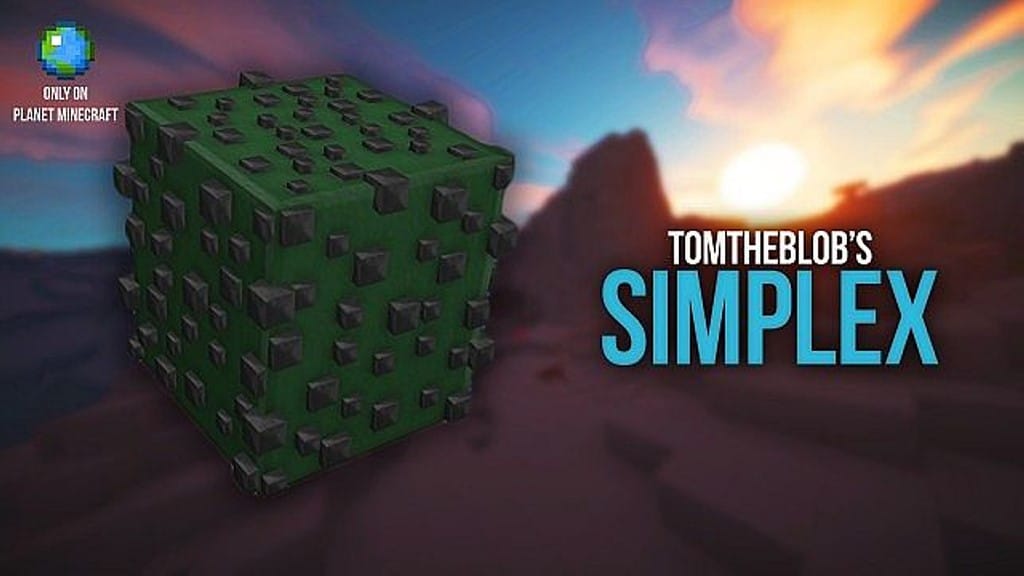
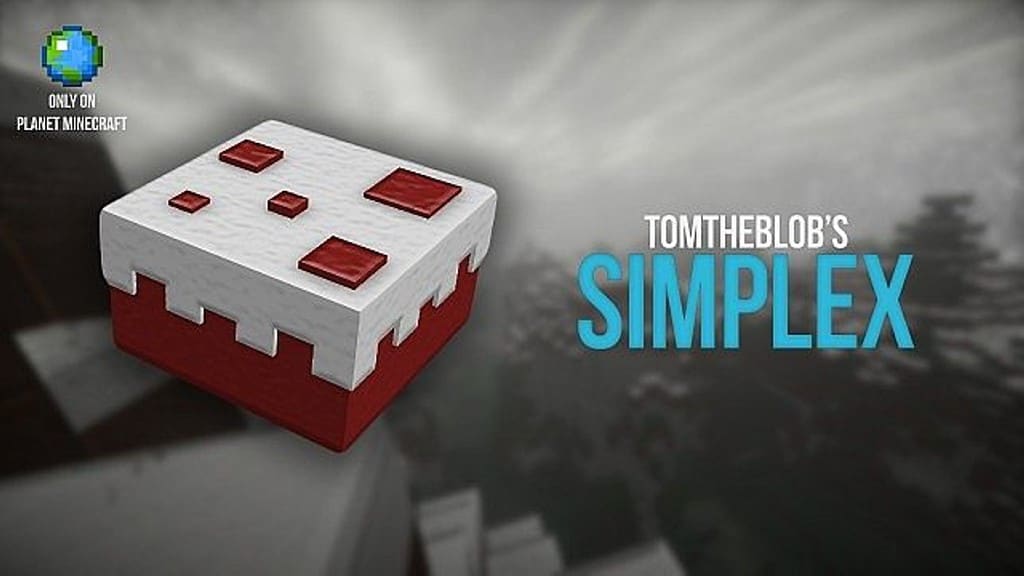
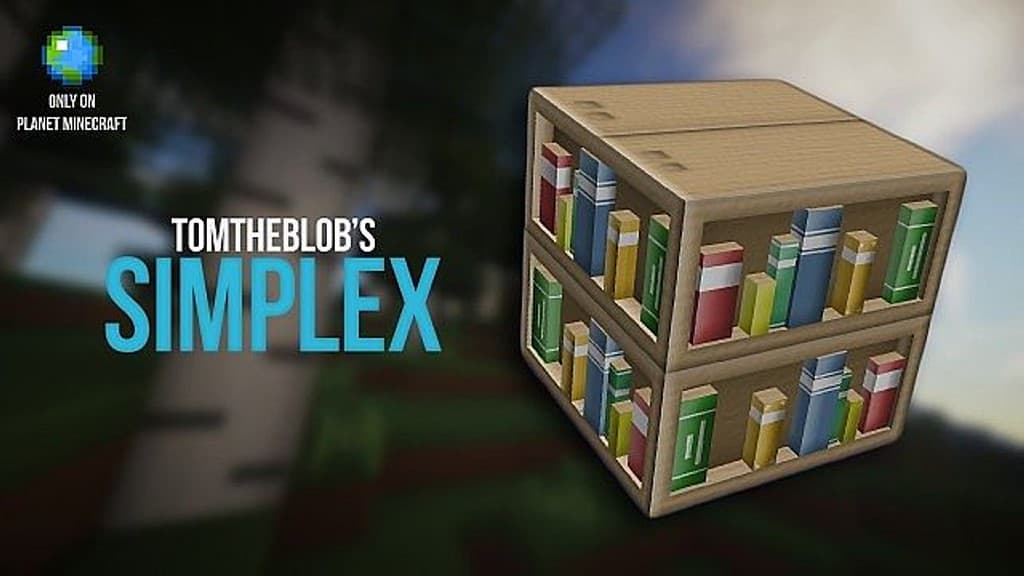
In the vast sea of overwhelmingly detailed, high-resolution resource packs, the Simplex resource pack is a refreshing take on a minimalistic look that can rarely be seen these days. However, the simplicity of this pack doesn’t come at the cost of quality. It’s important to note that while it does enhance the overall atmosphere and even makes the world look a bit cartoonish, it still manages to keep the original blocky feel of Minecraft. Casual players are going to be pleasantly surprised by the relaxing feel that these retextures bring to the table. The first thing that you’ll notice is the flat look of the blocks. They don’t try to complicate the texture’s structure – instead, they’re fairly simple with a lot of details and outlines that the modern, real-life motivated resource packs are lacking. You won’t be overwhelmed and left wondering whether you’re looking at a block of stone or cobblestone.
The developer applies this elegant, unique formula to every part of the game. According to his words, Simplex’s goal is to combine a simple and blocky style with the detail of HD textures – and he’s been pretty successful with this. While the pack still isn’t 100% completed, the most common blocks are more or less redone. While you might expect Simplex to be a low-resolution resource pack, that’s not the case – the two available versions are 64×64 and 128×128. This is because even though the overall look of the textures is simple, there is an impressive amount of depth to them that couldn’t otherwise be realized. If you’re on a lower-end PC, this might cause performance drops, so make sure to run it alongside Optifine if that’s the case. Although Simplex’s original release is getting close to its tenth birthday, it still manages to remain relevant and unique even today.
Simplex should be compatible with all of these Minecraft versions: 1.8.9 – 1.8.8 – 1.8.1 – 1.8.6 – 1.8 – 1.7.10 – 1.7.9 – 1.7.4 – 1.7
Screenshots
How to Install Texture Pack (Simple 10 Steps)
- Download OptiFine: Most of the texture packs and shaders need OptiFine. That’s why, first download and install OptiFine for the version of Minecraft you want to play.
- Download the Texture Pack: Get the texture pack you want from the download section. Choose the version that works with your Minecraft and your PC’s performance.
- Open Minecraft Launcher: Start Minecraft using the official game launcher — or even TLauncher, if you use that.
- Go to Options: From the main menu, click on the “Options” button.
- Open Resource Packs: Inside Options, click on “Resource Packs…”.
- Open the Resource Pack Folder: Click on “Open Resource Pack Folder” — this will open a folder named “resourcepacks”.
- Move the Pack File: Copy or move the .zip file you downloaded into that “resourcepacks” folder. (Don’t unzip the file — Minecraft uses it as-is!)
- Go Back and Refresh: Close the folder and click “Done”, then go back into “Resource Packs…” again.
- Activate the Pack: You’ll see the pack on the left side. Hover over it and click the arrow to move it to the right (active side).
Tip: If you get a message that the pack is for a different version, just click “Yes” — it usually works fine. - Click Done and Enjoy: Click “Done” again. Now your pack is ready to use in-game. It’s that easy!
Credits
This project was created by tomtheblob. We do not claim ownership of this content and do not modify the original files. Please visit the official channels to support the creator.
Download Links
Java Edition
Download Instructions
Curseforge: download starts automatically after a few seconds;
Mediafire: click the big blue button with the text “DOWNLOAD”;
Google Drive: in the top right corner you will see a small download icon (down arrow), click it and the download should start;


