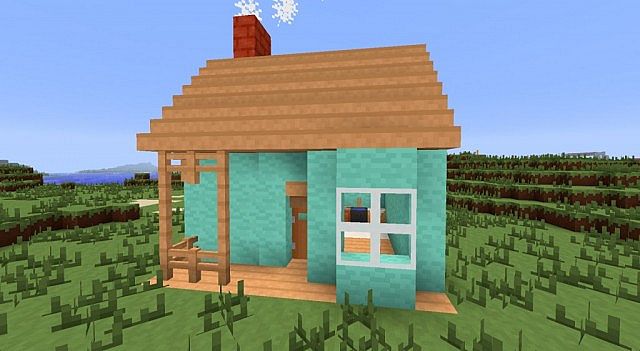
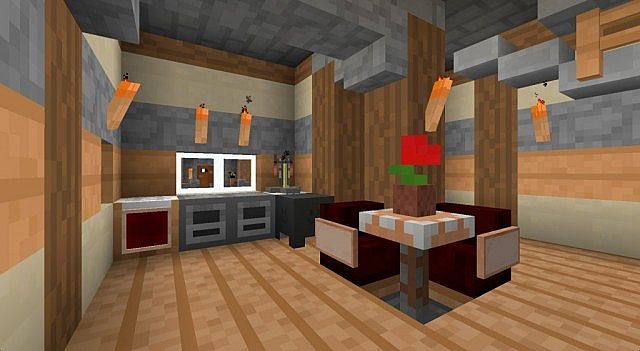
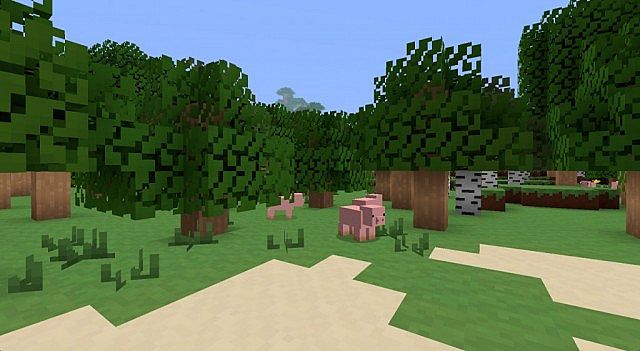
I absolutely love the Simple As That resource pack! It is truly one of those classic older Minecraft packs that many of us still fondly remember, even though it no longer receives updates. It does not try to impress you with complex realistic textures at all. Instead, it aims for a wonderfully clean, simple look that stays exceptionally easy on the eyes. If you want a Minecraft world that genuinely feels calm, this pack hits that goal right on the head. It uses soft, almost pastel-like colors alongside a minimalist approach. The resulting atmosphere feels remarkably cozy. The single biggest feature here is definitely its resolution. Simple As That runs at an ultra-light 8x, which is half the size of Minecraft’s default 16x textures. That specific design choice shapes everything about how the pack looks and how smoothly it runs. With fewer pixels to work with, the pack cleverly removes a lot of visual clutter. You get significantly less noise, which makes textures look surprisingly clean from a distance. You also get a much lighter load on your system, since the game has way less texture data to handle. That performance benefit matters most on low-end hardware. If your computer struggles in busy areas, a lower resolution pack can truly help Minecraft feel so much more stable. Large towns, dense villages, farms with lots of blocks, and places with many light sources can really push frame rates down. You might normally notice stutter when you turn your camera or when new chunks load. While texture resolution is not the only factor in performance, smaller textures can genuinely reduce strain and improve how the game feels, especially when your GPU or memory sits near its limit.
Simple As That texture pack often gets recommended for that exact reason by the community. It can give you some much-needed extra breathing room without forcing you to lower every single video setting. The style feels like a softened version of vanilla Minecraft rather than a total, jarring redesign. It does not fight the game’s core look at all. Blocks still look exactly like the blocks you know and love, just with a gentler, more soothing touch. Colors stay friendly and wonderfully balanced. The world can look much brighter without needing any extreme saturation. If you play long sessions, this softer look can drastically reduce visual fatigue. At the same time, you should certainly expect the natural limits that come with 8x pixel art. Some players completely adore the crisp, simplified look. Others might feel it removes a bit too much texture character, especially on natural blocks like stone, logs, and foliage. Because the pixel grid is so small, the pack simply has less space for subtle variation. That can make some areas look a bit flat, mainly if you rely on textures to add depth. Version support is the other main concern. Like many older packs, it may not cover newer blocks and items from recent Minecraft updates. When you use an old pack on a modern version, you can occasionally run into missing textures issues. The pack may still work in a basic sense, but the style can break where the game has content the pack was never designed for. If you want a totally consistent look, you may need to play on a version that matches the pack’s original target, or just accept that some newer blocks will not match.
Simple As That should be compatible with all of these Minecraft versions: 1.7.10 – 1.7.9 – 1.7.4 – 1.7 – 1.6.4 – 1.6.2
Screenshots
How to Install Texture Pack (Simple 10 Steps)
- Download OptiFine: Most of the texture packs and shaders need OptiFine. That’s why, first download and install OptiFine for the version of Minecraft you want to play.
- Download the Texture Pack: Get the texture pack you want from the download section. Choose the version that works with your Minecraft and your PC’s performance.
- Open Minecraft Launcher: Start Minecraft using the official game launcher — or even TLauncher, if you use that.
- Go to Options: From the main menu, click on the “Options” button.
- Open Resource Packs: Inside Options, click on “Resource Packs…”.
- Open the Resource Pack Folder: Click on “Open Resource Pack Folder” — this will open a folder named “resourcepacks”.
- Move the Pack File: Copy or move the .zip file you downloaded into that “resourcepacks” folder. (Don’t unzip the file — Minecraft uses it as-is!)
- Go Back and Refresh: Close the folder and click “Done”, then go back into “Resource Packs…” again.
- Activate the Pack: You’ll see the pack on the left side. Hover over it and click the arrow to move it to the right (active side).
Tip: If you get a message that the pack is for a different version, just click “Yes” — it usually works fine. - Click Done and Enjoy: Click “Done” again. Now your pack is ready to use in-game. It’s that easy!
Credits
This Resource Pack was originally created by CopperCookie. We do not claim ownership of this content, nor do we modify the download files. All rights remain with the original creator. We strongly encourage you to support CopperCookie and their work.
Download Instructions
Curseforge: download starts automatically after a few seconds;
Mediafire: click the big blue button with the text “DOWNLOAD”;
Google Drive: in the top right corner you will see a small download icon (down arrow), click it and the download should start;


