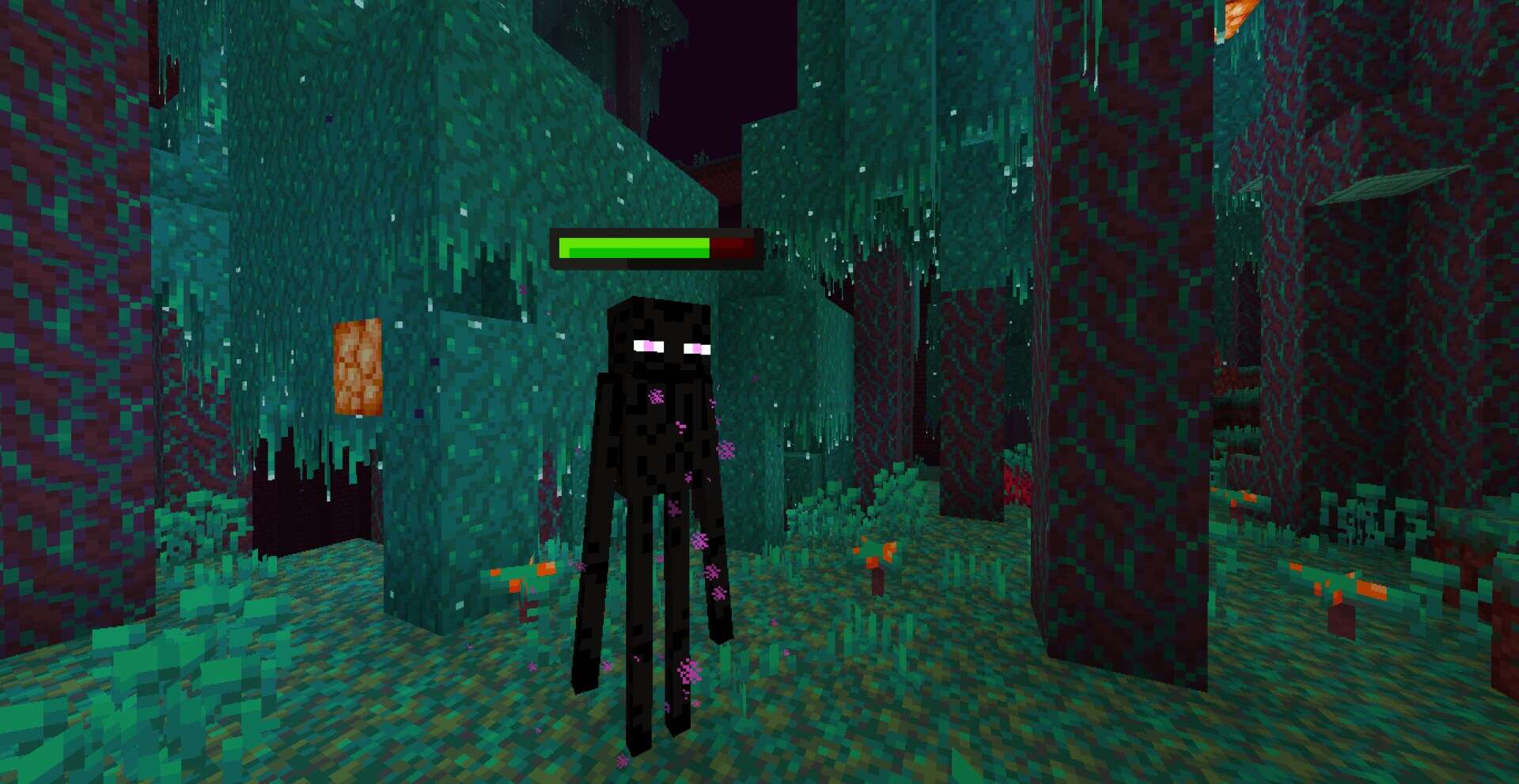
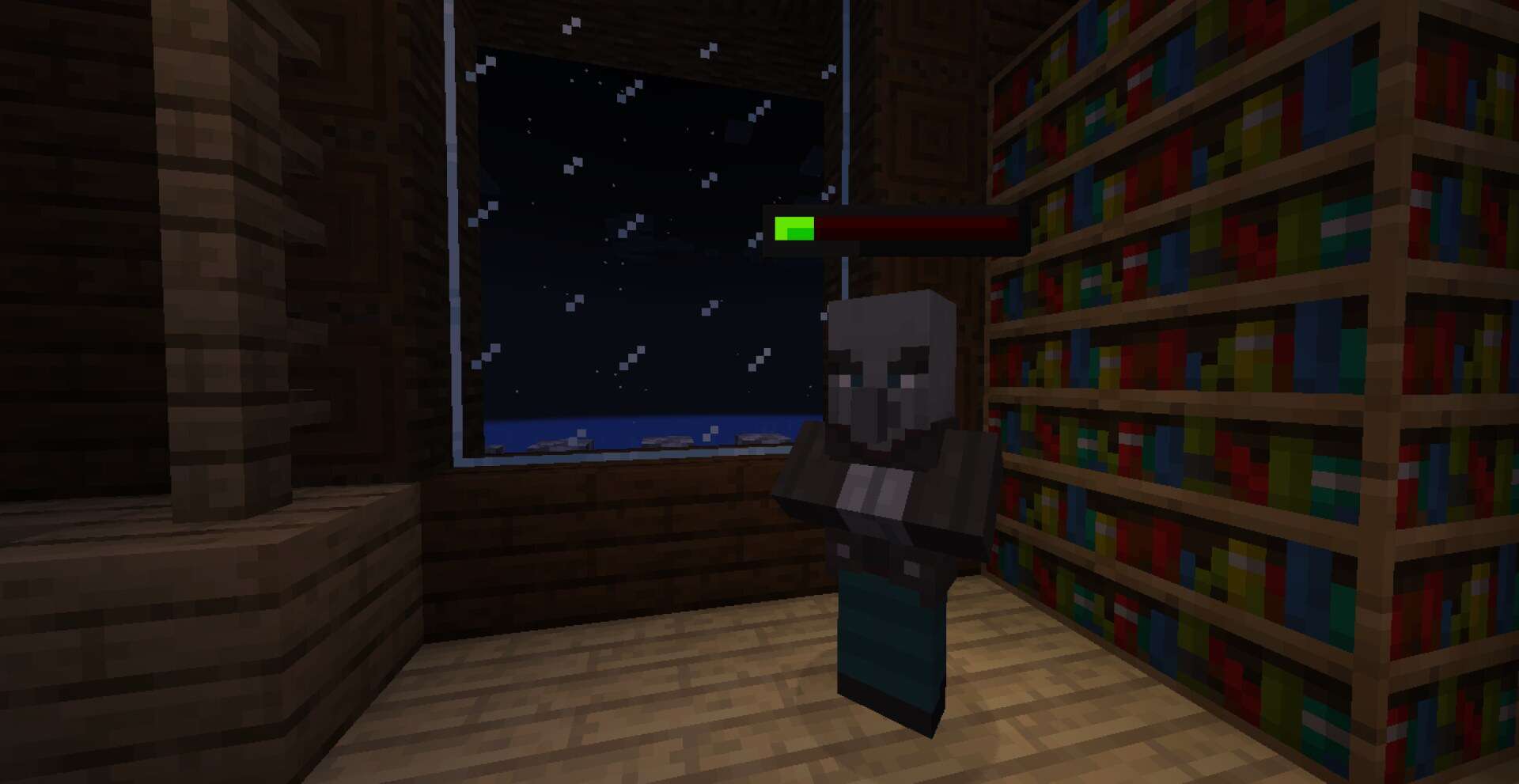
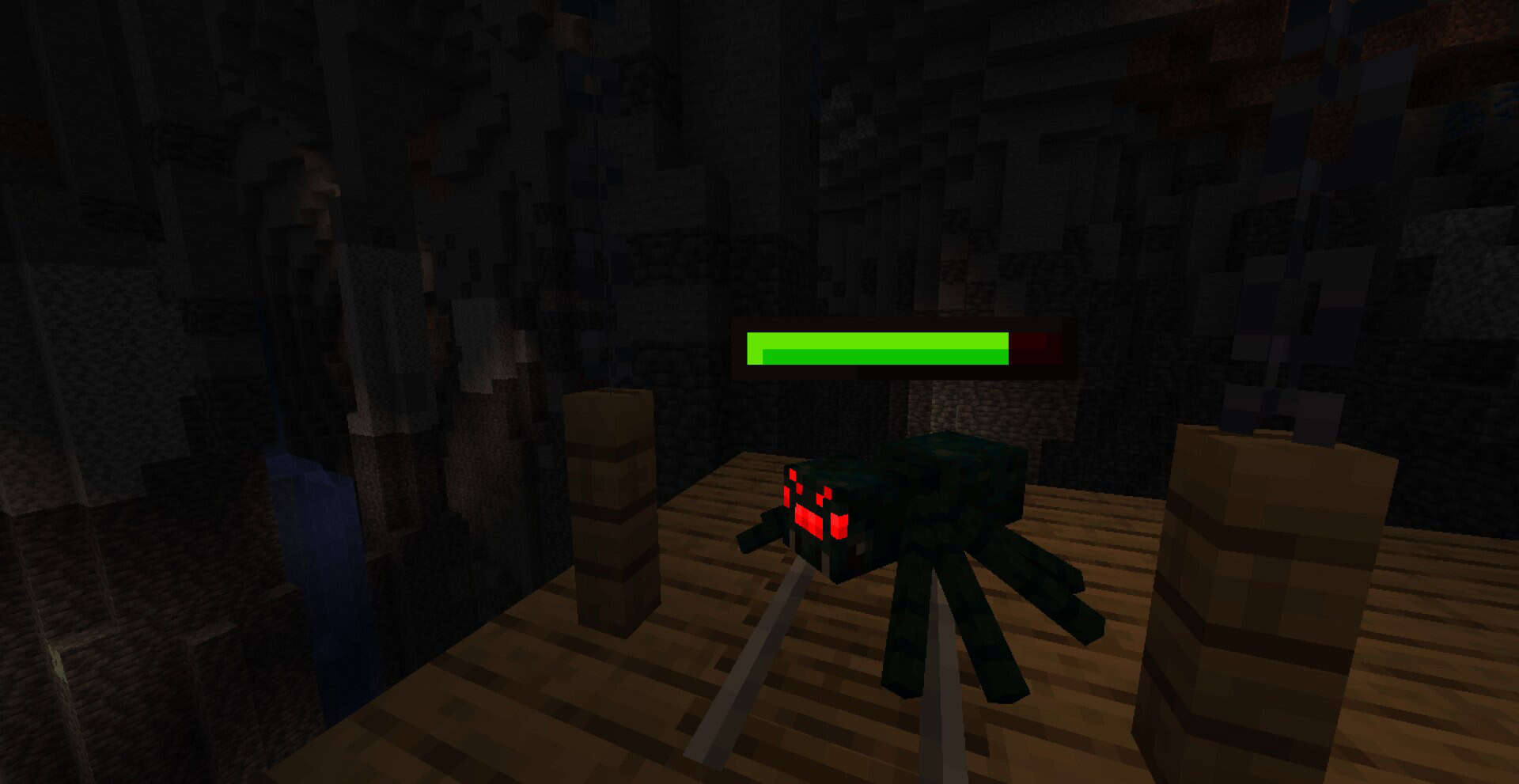
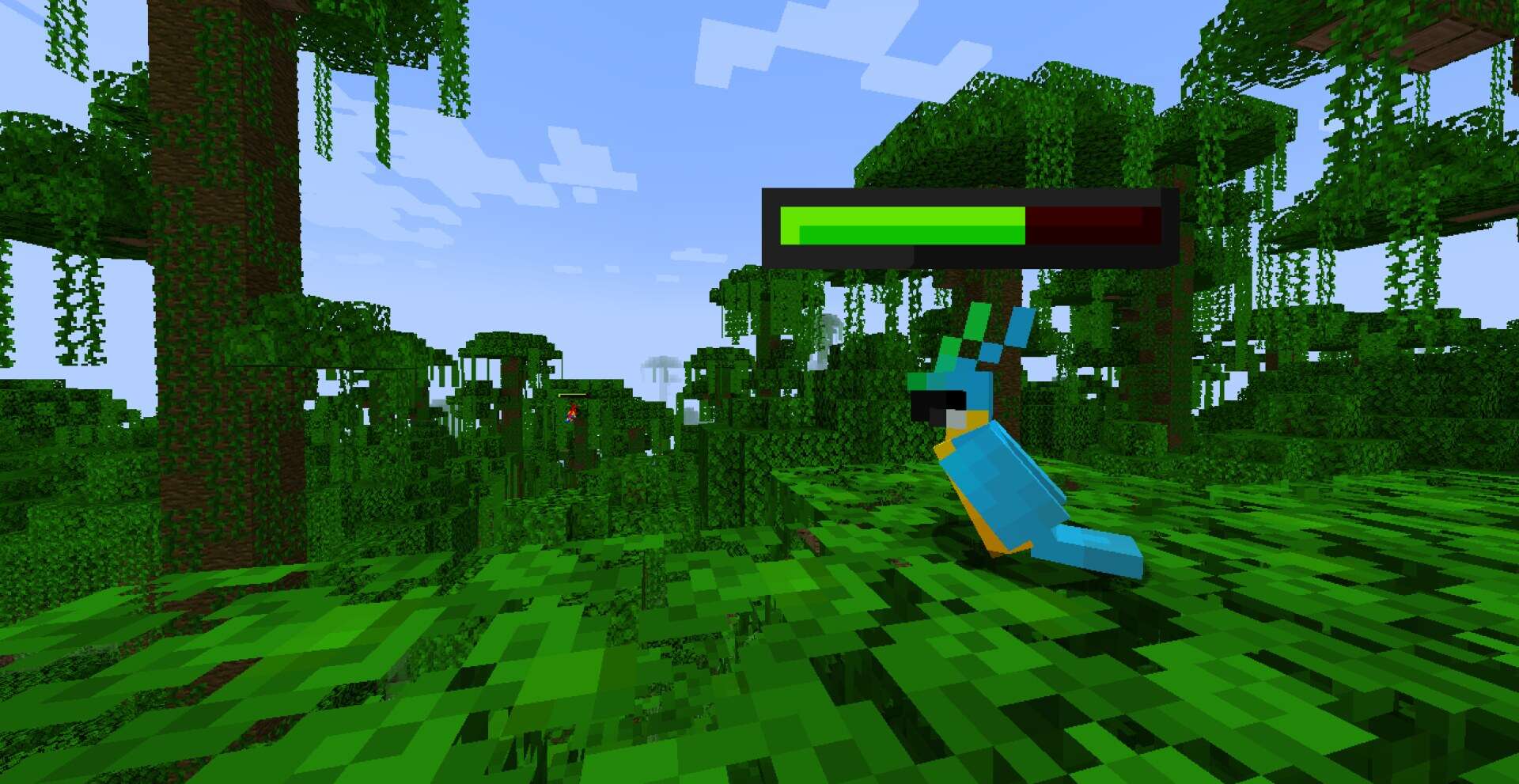
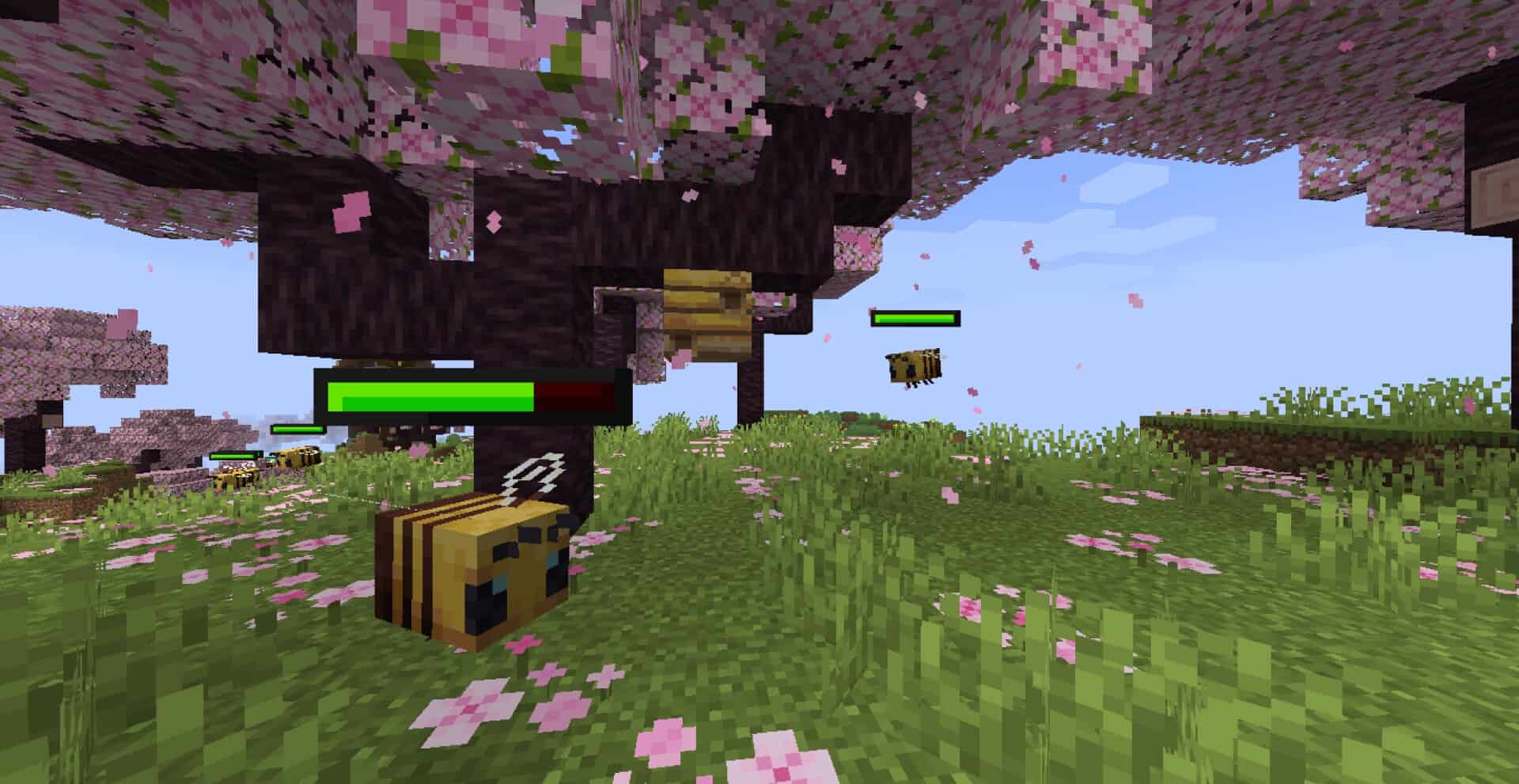
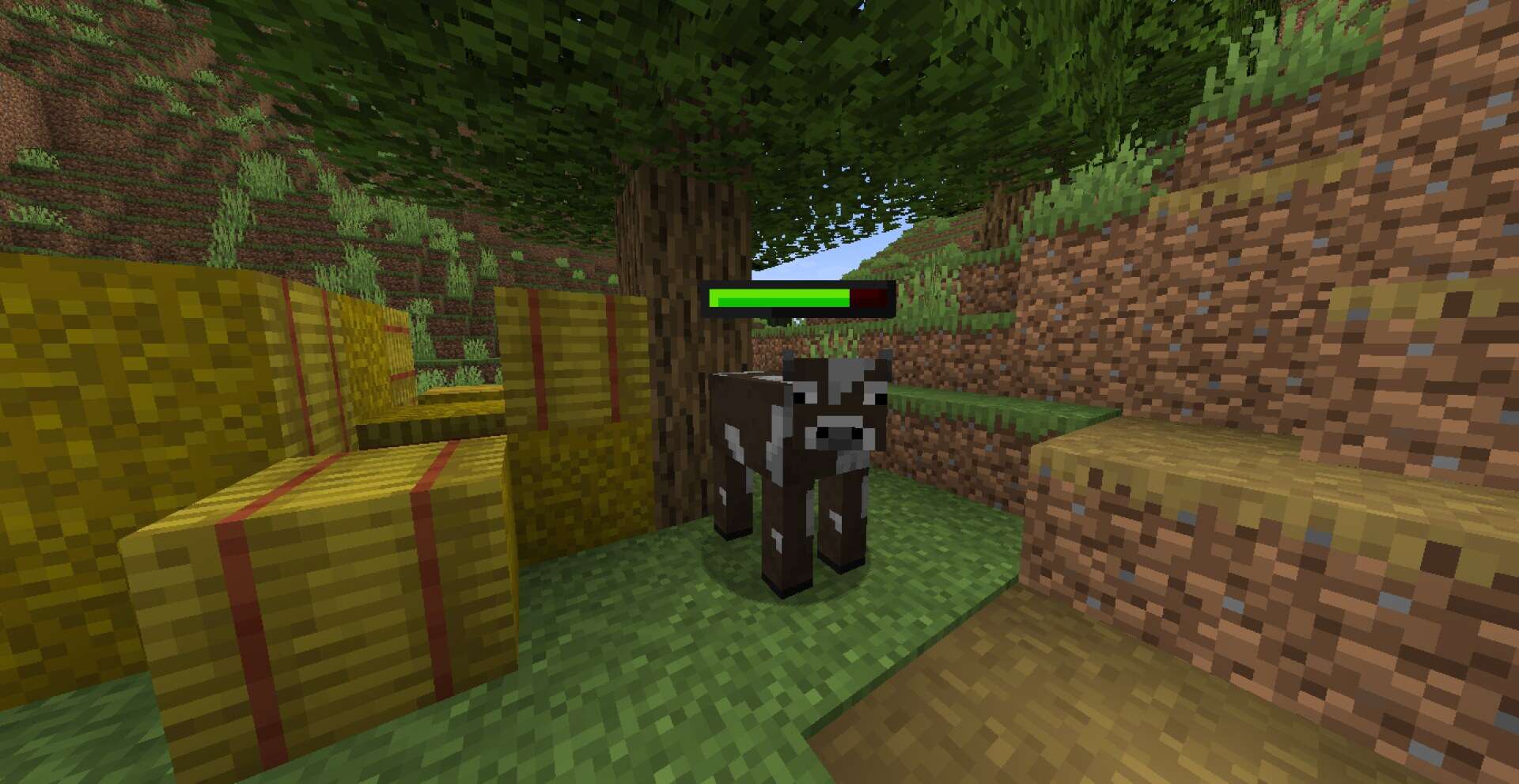
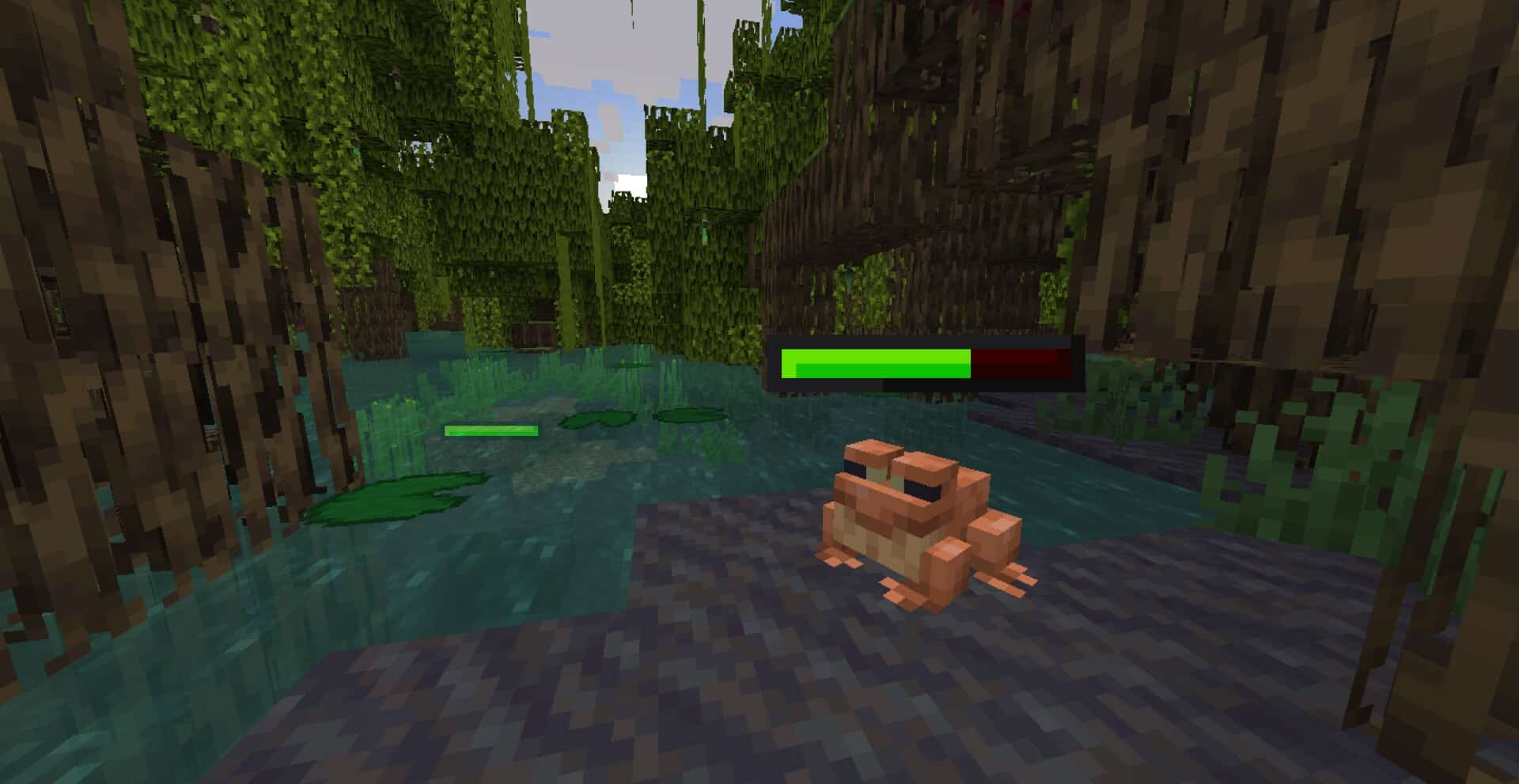
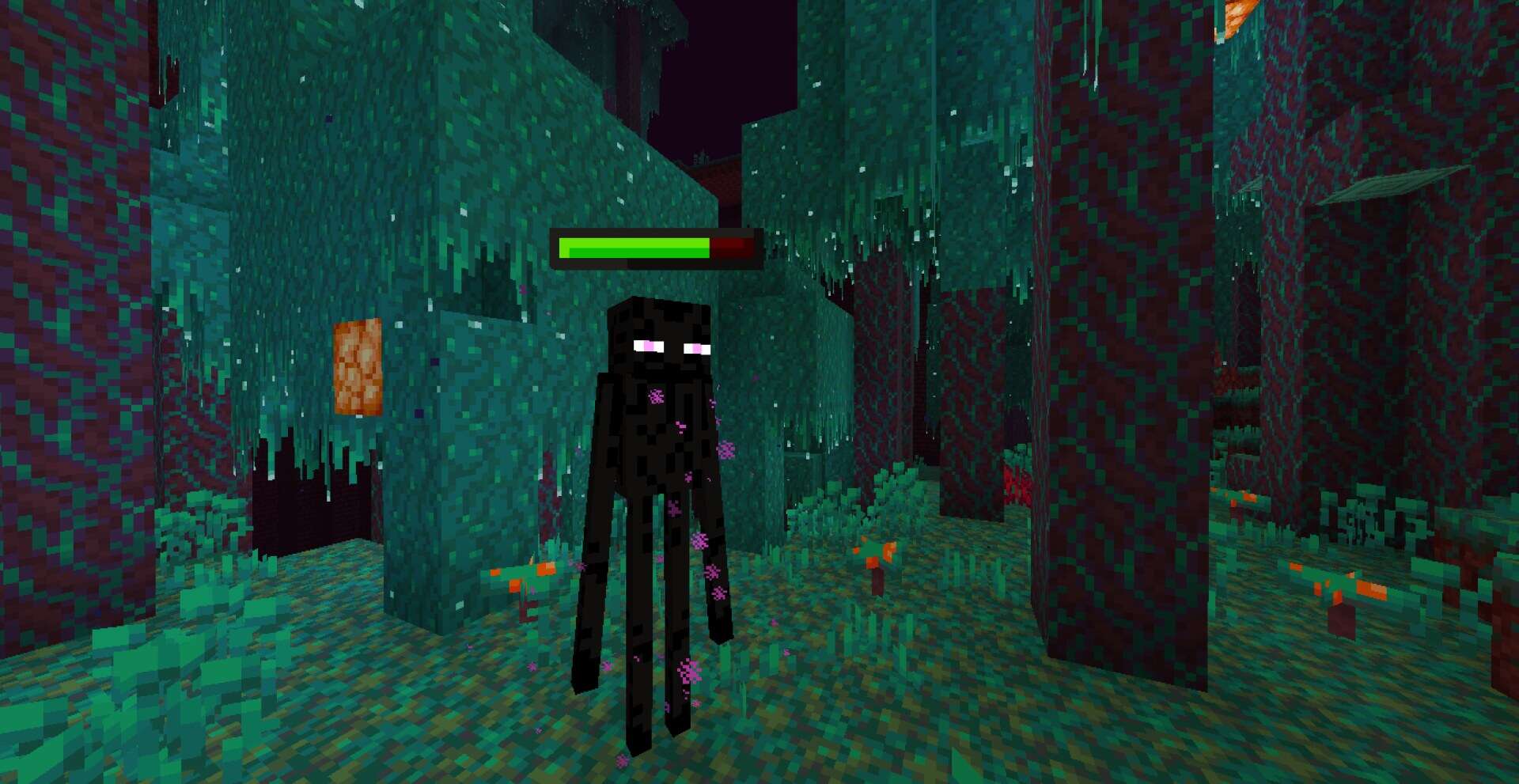
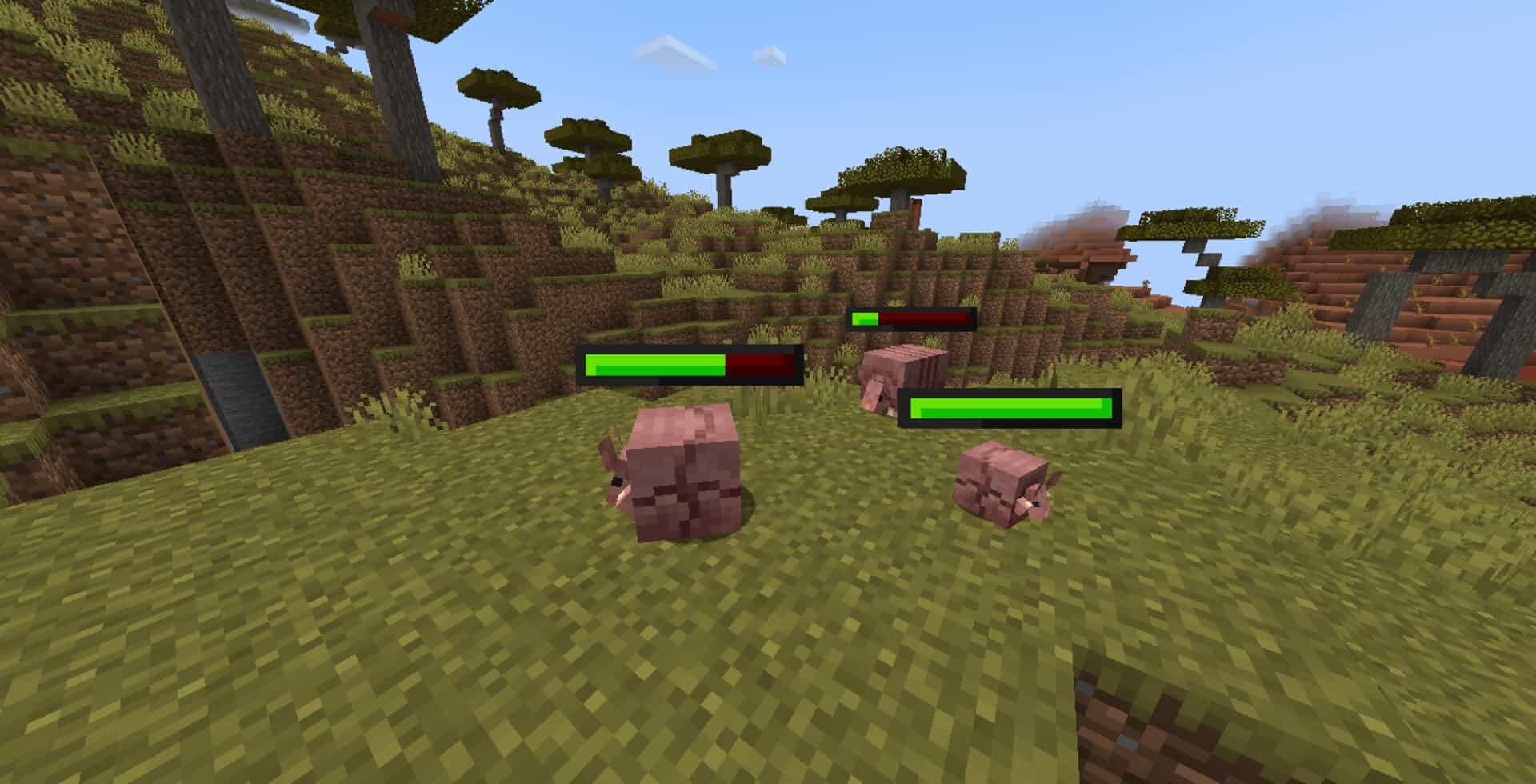
Many of us have learned the hard way that Minecraft can be as frustrating as it is fun. The game creates memorable moments, but it can also punish you in ways that feel terribly unfair. Absolutely nothing hurts more than carrying a full stack of diamonds only to accidentally slip into a pool of lava. You know you will never see those items again, and that sudden loss can easily ruin an entire gaming session. Sometimes it is not lava, but something much smaller that bothers you. You might swing your axe at a tree only for your beloved wolf to wander straight into the hitbox at the absolute wrong second. Or maybe you accidentally clip a villager with your sword while clearing out hostile mobs near the village square. These accidents rarely end the world, but they do create immense guilt and daily irritation. Until recently, there was no simple way to prevent them from happening again. That is precisely where the brilliant idea of visible health bars comes into play. For years, this requested feature was only possible through heavy modifications. Mods added a neat bar above every single creature, letting you see exactly how much health remained after each strike. It was exceptionally helpful in fast-paced combat and also deeply reassuring when dealing with tamed pets and villagers because you could accurately gauge damage at a single glance. The major downside was the usual frustrating cycle of mod updates. A brand new Minecraft release often broke compatibility instantly, leaving you to wait patiently for developers to catch up or forcing you to stay stuck on an older version of the game. Now that exact same idea exists without any of those annoying headaches. The Spryzeen’s Healthbars resource pack offers the exact same wonderful functionality as a mod but works seamlessly through standard models. Once you have it installed, you will immediately notice that every mob you encounter features a small, clean health display floating directly above its head. Strike any creature and the bar updates instantly to show precisely how much damage you just dealt. Keep hitting and you will know definitively how many more swings it will take to successfully finish the fight. Anyone who has ever lost track of a creepers health right in the middle of intense battle can already vividly imagine how useful this feature becomes. You no longer have to guess whether your next hit will drop it before it explodes; you simply know for sure. The way it works feels wonderfully familiar to anyone who has ever played classic RPG games. A glowing bar above an enemy is standard in RPG combat, and this amazing pack brings that exact same clarity straight into vanilla Minecraft.
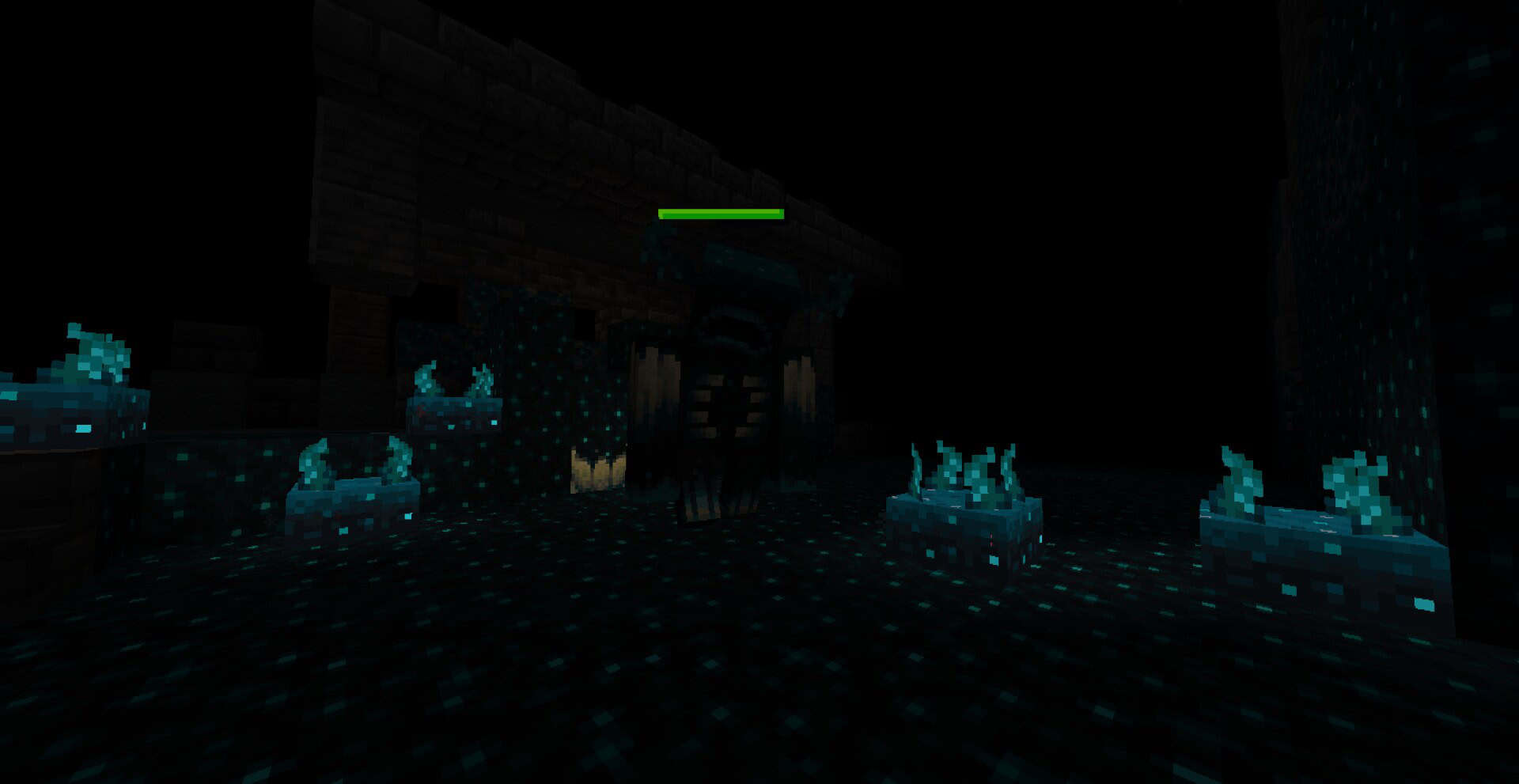
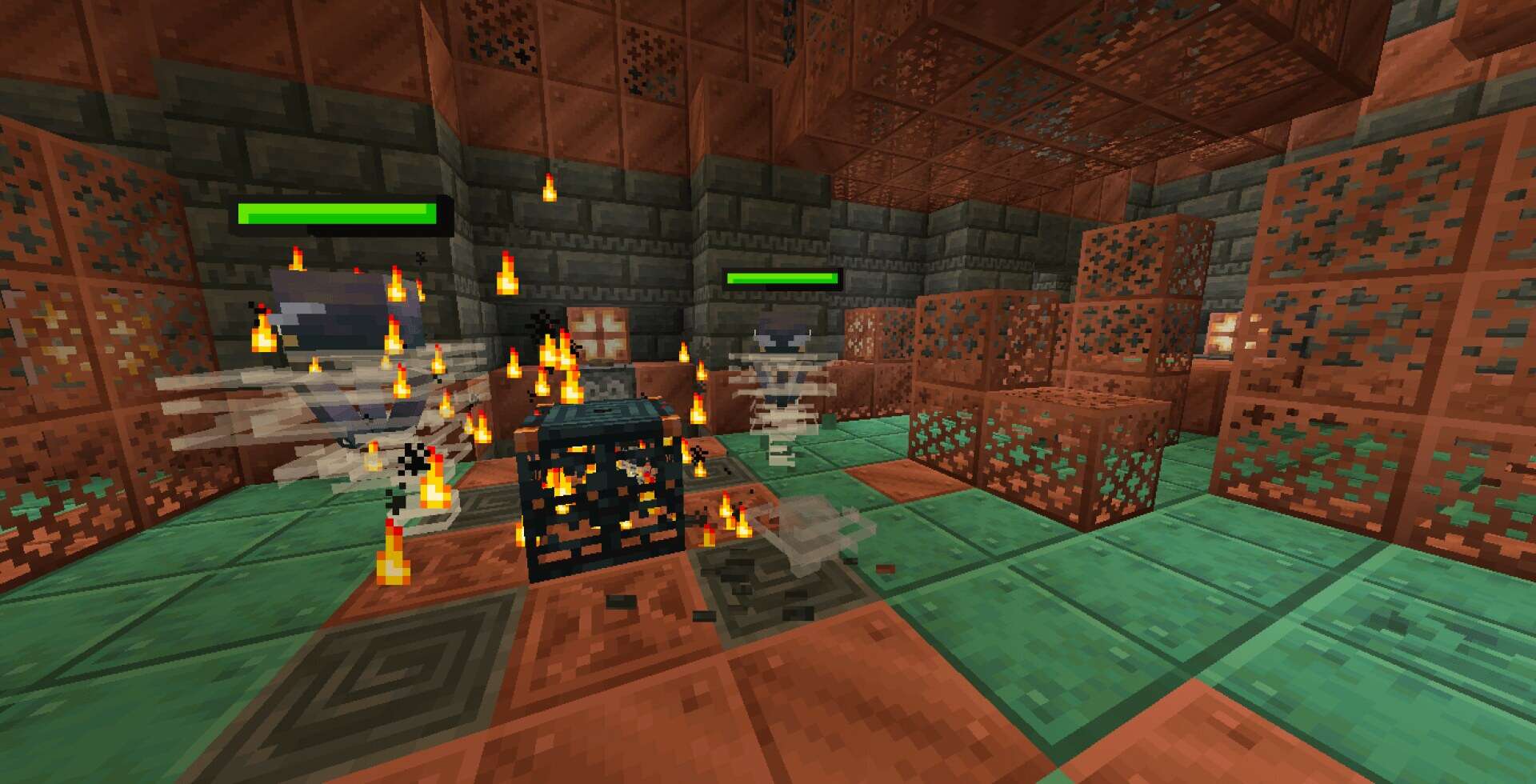
The health bar utilizes brilliant emissive textures, which means it actually glows nicely in dark places. Explore deep, terrifying caves or walk through the monster-filled night and you can still see enemy health clearly without straining your eyes. It also features a delightfully simple animated style that looks incredibly smooth but never clashes with Minecraft’s iconic blocky aesthetic. The design is purely functional first, but it fits the overall game style well enough that it genuinely feels like it belongs there naturally. Because the pack runs purely on textures rather than heavy game code modifications, it is remarkably lightweight compared to traditional mods. Your frame rate truly should not suffer at all. The pack does not touch blocks, items, or ambient environments in any way. It strictly adds helpful overlays above mobs. Even with the glowing visual effects and small animations, the performance impact remains practically minimal. If your computer handled vanilla Minecraft without performance issues, it should effortlessly handle this pack too. Beyond just combat, there are subtle benefits that become entirely clear after spending some playtime with it. Accidentally hurting your precious tamed animals is far less stressful because you can see their exact health status right away and quickly feed them if needed. You also gain a much better sense of how strong or weak different mob types actually are. For example, the very first time you bring down a massive iron golem, you will truly notice just how much health pool it takes to defeat. That kind of valuable information drastically improves your overall tactical awareness of the game world. The sheer convenience of a resource pack is what truly makes Spryzeen’s Healthbars texture pack stand out from the rest. You simply drop the pack into your resource folder, turn it on in the menu, and it just works. You only need Optifine or EMF for this, but if this is not your very first time installing custom resource packs, you probably already have them set up. Resource packs often focus solely on visuals. This one is entirely different because it adds a deeply practical functional layer to the game. It gives you crucial information you did not have before, and that specific information genuinely changes the way you play. You react faster to incoming threats, plan your hits more carefully, and take infinitely better care of the friendly creatures surrounding you. The effect is not overly dramatic or flashy, but it is noticeably helpful every single time you log in. For players who want significantly more control during their grand adventures, the Healthbars resource pack is definitely worth trying. It blends beautifully into the game without drawing unnecessary attention to itself and solves long-standing problems that have bothered players for years. Once you use it, you will constantly wonder why this essential feature was not a core part of Minecraft all along.
Spryzeen’s Healthbars should be compatible with all of these Minecraft versions: 26.3 – 26.2 – 26.1.2 – 26.1.1 – 26.1 – 1.21.11 – 1.21.10 – 1.21.9 – 1.21.8 – 1.21.7 – 1.21.6 – 1.21.5 – 1.21.4 – 1.21.3 – 1.21.2 – 1.21.1 – 1.21 – 1.20.6 – 1.20.5 – 1.20.4 – 1.20.3 – 1.20.2 – 1.20.1 – 1.20 – 1.19.4 – 1.19.3 – 1.19.2 – 1.19.1 – 1.19 – 1.18.2 – 1.18.1 – 1.18 – 1.17.1 – 1.17 – 1.16.5 – 1.16.4 – 1.16.3 – 1.16.2 – 1.16.1 – 1.16
Spryzeen’s Healthbars Resource Pack – Screenshots
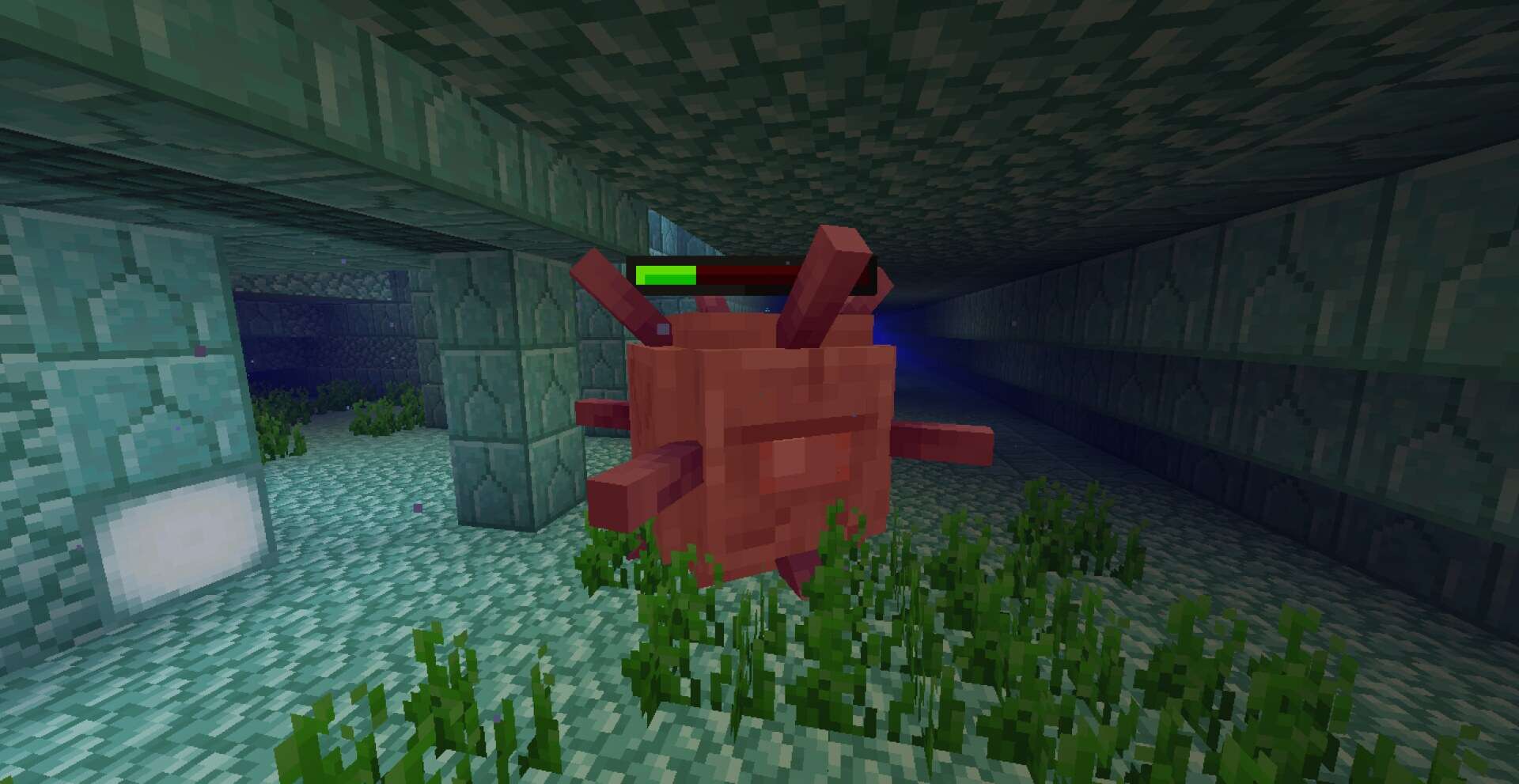
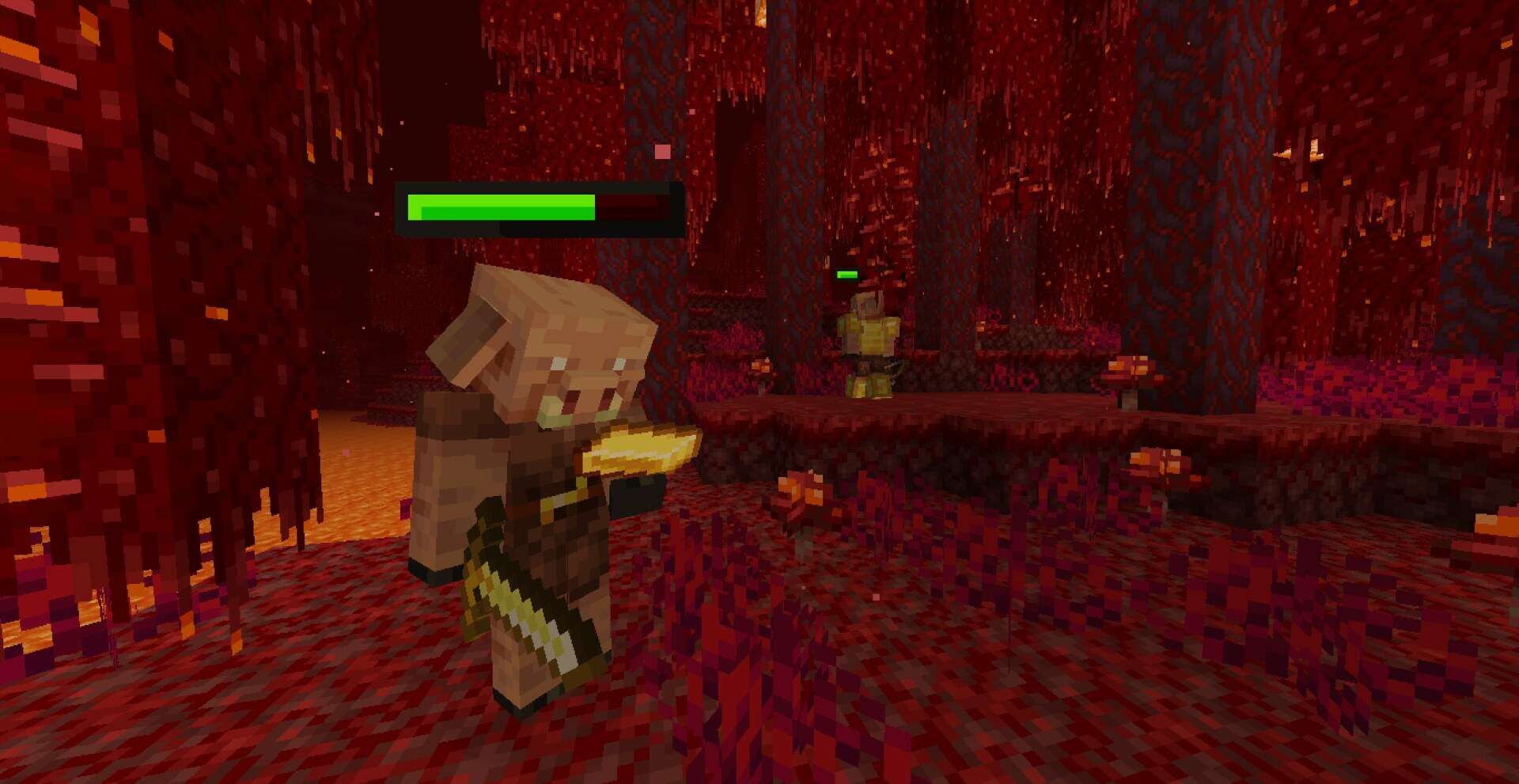
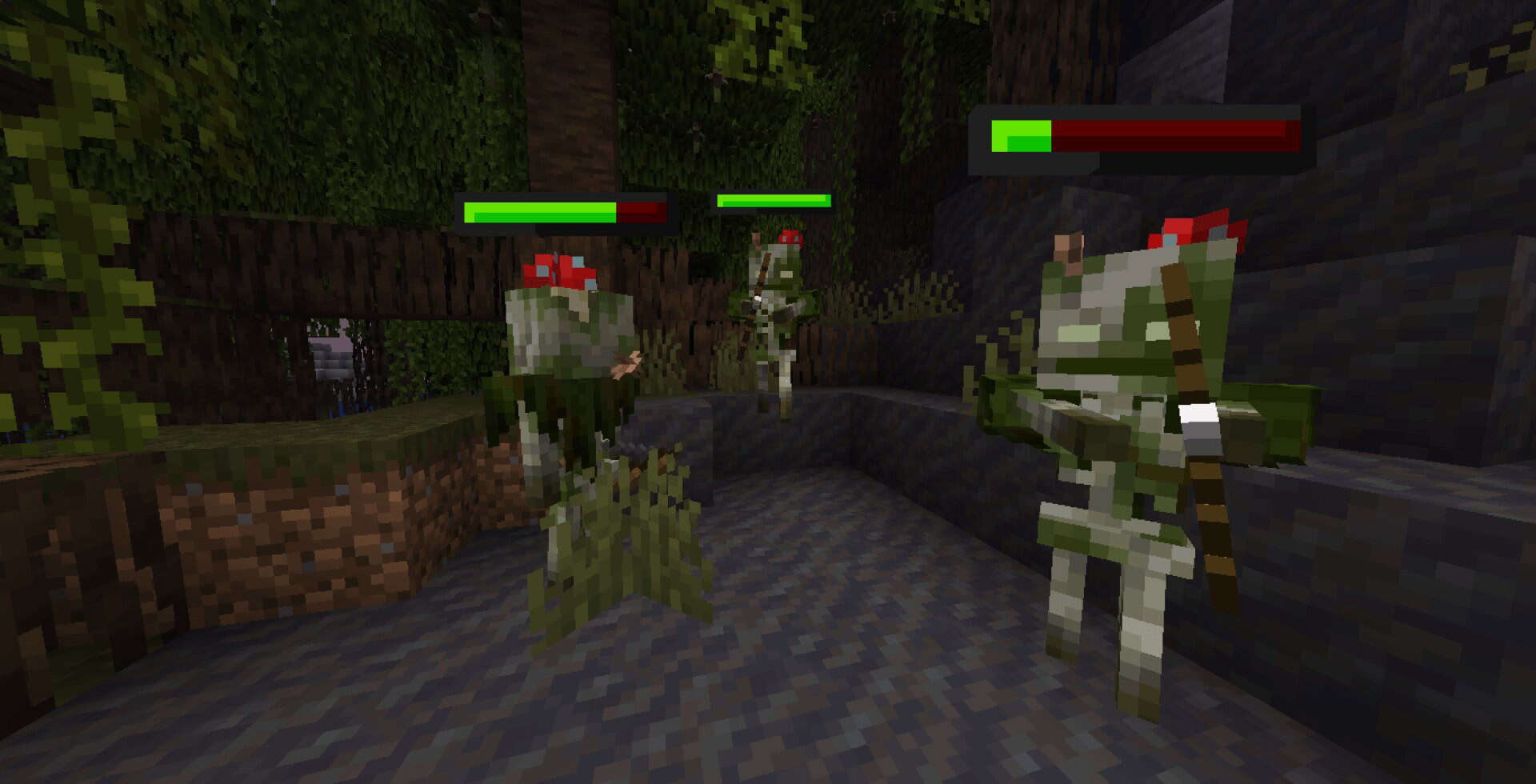
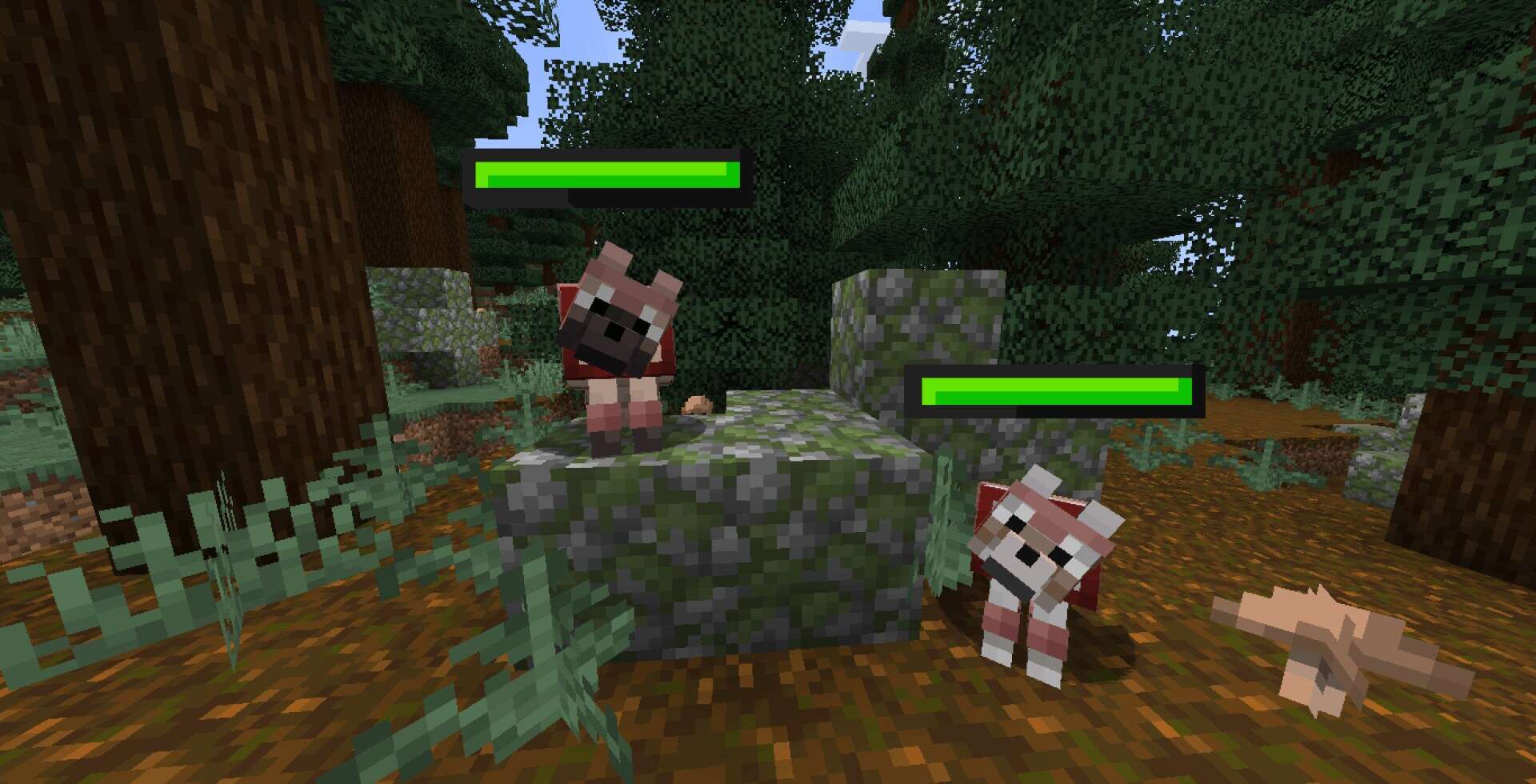
How to Install Texture Pack (Simple 10 Steps)
- Download OptiFine: Most of the texture packs and shaders need OptiFine. That’s why, first download and install OptiFine for the version of Minecraft you want to play.
- Download the Texture Pack: Get the texture pack you want from the download section. Choose the version that works with your Minecraft and your PC’s performance.
- Open Minecraft Launcher: Start Minecraft using the official game launcher — or even TLauncher, if you use that.
- Go to Options: From the main menu, click on the “Options” button.
- Open Resource Packs: Inside Options, click on “Resource Packs…”.
- Open the Resource Pack Folder: Click on “Open Resource Pack Folder” — this will open a folder named “resourcepacks”.
- Move the Pack File: Copy or move the .zip file you downloaded into that “resourcepacks” folder. (Don’t unzip the file — Minecraft uses it as-is!)
- Go Back and Refresh: Close the folder and click “Done”, then go back into “Resource Packs…” again.
- Activate the Pack: You’ll see the pack on the left side. Hover over it and click the arrow to move it to the right (active side).
Tip: If you get a message that the pack is for a different version, just click “Yes” — it usually works fine. - Click Done and Enjoy: Click “Done” again. Now your pack is ready to use in-game. It’s that easy!
Spryzeen’s Healthbars Texture Pack — Creator Credit
Original files: We feature community-made content without claiming ownership of other creators' work. Download the pack from its linked source rather than an independently re-uploaded copy on this website.
Download availability: The original publisher controls the availability of each file. Links and supported versions can change, so please report any broken download link in the comments to help us keep the page useful.
Independent fan website: Minecraft is a trademark of Mojang Studios and Microsoft. This website is independently operated and is not affiliated with or endorsed by either company.
Support the creator: Enjoying this pack? Consider visiting the creator's official page, leaving constructive feedback, or supporting their work through the options they provide.
Download Instructions
Download Instructions
Choose the download source linked in this article and follow the steps below.
CurseForge
CFOpen the provided CurseForge page and select the download option if needed. The file may start downloading automatically after a short wait.
MediaFire
MFOn the MediaFire file page, locate the main Download button and click it. Avoid unrelated advertisements or pop-ups.
Google Drive
GDOpen the file preview and select the download icon near the upper-right corner. If preview is unavailable, follow the options shown by Google Drive.
Important Download Information
We provide links to original creator pages and third-party file-hosting services; downloads are not hosted on our own servers. We aim to use relevant source links and check them, but their availability and authenticity can change. A link is not a guarantee that a file has been independently security-tested. Please use trusted sources, review downloaded files carefully, and report broken links in the comments. Minecraft is a trademark of Mojang Studios and Microsoft; this website is independent and is not officially affiliated with either company.